How to Export Crypto Invoice Data to QuickBooks and Xero (2026)
A practical 2026 guide to getting crypto invoice data into QuickBooks and Xero — what fields you need, CSV export structure, fiat-at-payment values, and a clean import workflow.
TL;DR
Getting crypto invoices into QuickBooks or Xero is straightforward when your export carries the right fields — invoice number, client, date, fiat value at payment, asset, and transaction reference. The trick is exporting invoice-level records with fiat values attached, not a raw wallet CSV. Here's the workflow.
I run product at Settlematic, so this is the export-and-import view. General information, not accounting advice.
The fields QuickBooks and Xero need
Both systems work in your base currency and around invoices and payments. To import crypto invoice activity cleanly, your export should include, per row:
- Invoice number — to match the receipt to the invoice.
- Client/customer — to map to the right contact.
- Date — when the payment was received.
- Fiat value at payment — the base-currency amount, which is what the books record.
- Asset and amount — for reference and any gain/loss tracking.
- Transaction reference — the on-chain identifier, for audit traceability.
The make-or-break field is fiat value at payment. Accounting software doesn't want a coin amount; it wants the dollar (or local-currency) figure. If your export only has coin amounts, someone has to look up historical prices before importing — exactly the manual work you're trying to avoid.
The workflow
- Invoice through a platform that records fiat-at-payment so the value is captured automatically. (Reporting & exports.)
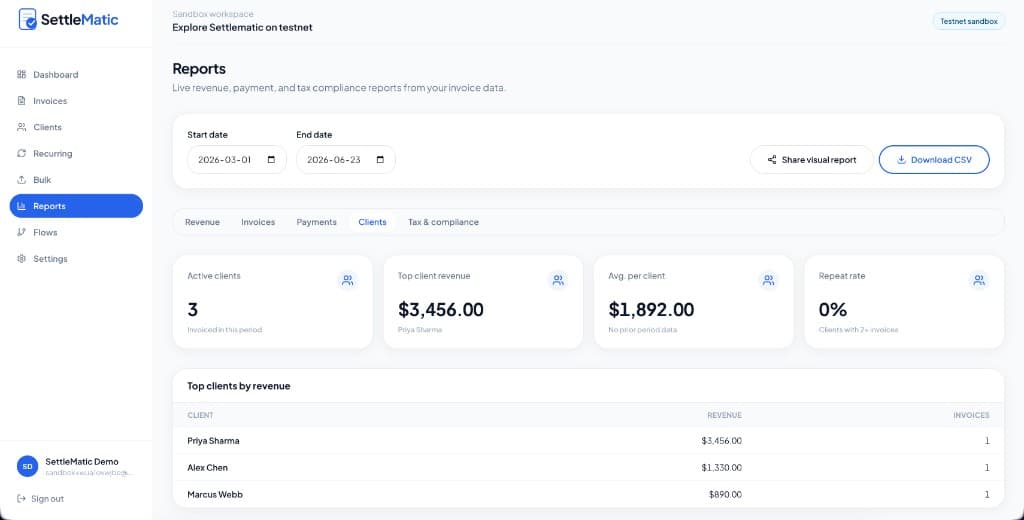
- Export the period's invoices and payments as a CSV with the fields above.
- Map columns to your accounting import template. Both QuickBooks and Xero accept CSV imports; align invoice number, contact, date, and amount to their fields.
- Import and review. Confirm receipts match invoices and the base-currency amounts are right.
- Handle disposals separately if you later convert volatile crypto, for any gain/loss entries.
Why a wallet CSV doesn't work
A raw wallet export lists transfers, not invoices. It has no invoice numbers, no client mapping, and no fiat values — so it can't import as receivables without heavy manual work. This is a known red flag when evaluating tools: if "export" means a wallet CSV, your accounting integration will be painful. You want invoice-level exports. (What good invoicing looks like.)
Keeping it clean over time
Export and import monthly rather than annually. It keeps each batch small, catches mapping issues early, and means year-end is just the last month's import plus a review — not a reconstruction. See month-end reconciliation.
The bottom line
Crypto invoice data imports cleanly into QuickBooks and Xero when the export is invoice-level and carries fiat-at-payment values. Set that up once and accounting integration becomes routine. To see the export structure, run a free testnet invoice and pull the CSV.
Explore Settlematic
Ready to try the workflow in your own workspace? Start on testnet, then explore our how it works guide and product features.